Install guide
You’ll need the OmbraWatch-0.3.0-NT8.zip file and your install code (it starts with ow_). Both are in your welcome email. Keep the code private: it’s what lets the alert relay email you.
1. Import the add-on
- Save the zip somewhere you can find it. Don’t unzip it.
- In NinjaTrader’s Control Center, choose Tools › Import › NinjaScript Add-On and pick the zip.
- NinjaTrader compiles it and says the import succeeded. Restart NinjaTrader.
- Under New you’ll now see Ombra Watch. Open it. It creates the folder
Documents\NinjaTrader 8\OmbraWatch.
2. Tell it who leads (Groups tab)
Connect your accounts as usual, then open the Groups tab in the Ombra Watch window. It lists every account NinjaTrader knows. For each one pick Leader, Follower or Ignore, and fill in:
- Group: any name. Accounts that should hold the same position share a group. You can have several groups.
- Multiplier: follower size divided by leader size. Use 1 if they trade the same size, 2 if the follower trades double.
- Exactly one Leader per group, and at least one Follower. Set any account you don’t copy to Ignore.
Press Save groups. If something needs fixing, it tells you in plain English and saves nothing. Once saved, Watch starts using the new groups at once, with no restart. The line at the top should say something like Watching 3 accounts in 1 group.
3. Switch on email alerts (Email tab)
- Open the Email tab. Tick Email alerts and paste your install code into the box (Ctrl+V).
- Press Save. It should say Saved. Email alerts are on. No restart is needed, and the code is never shown again.
- Press Send test email alert. An email from Ombra Watch <alerts@ombratrading.com> should arrive within a minute. Check your junk folder the first time and mark it “not junk”.
4. Test it on a simulated account (2 minutes)
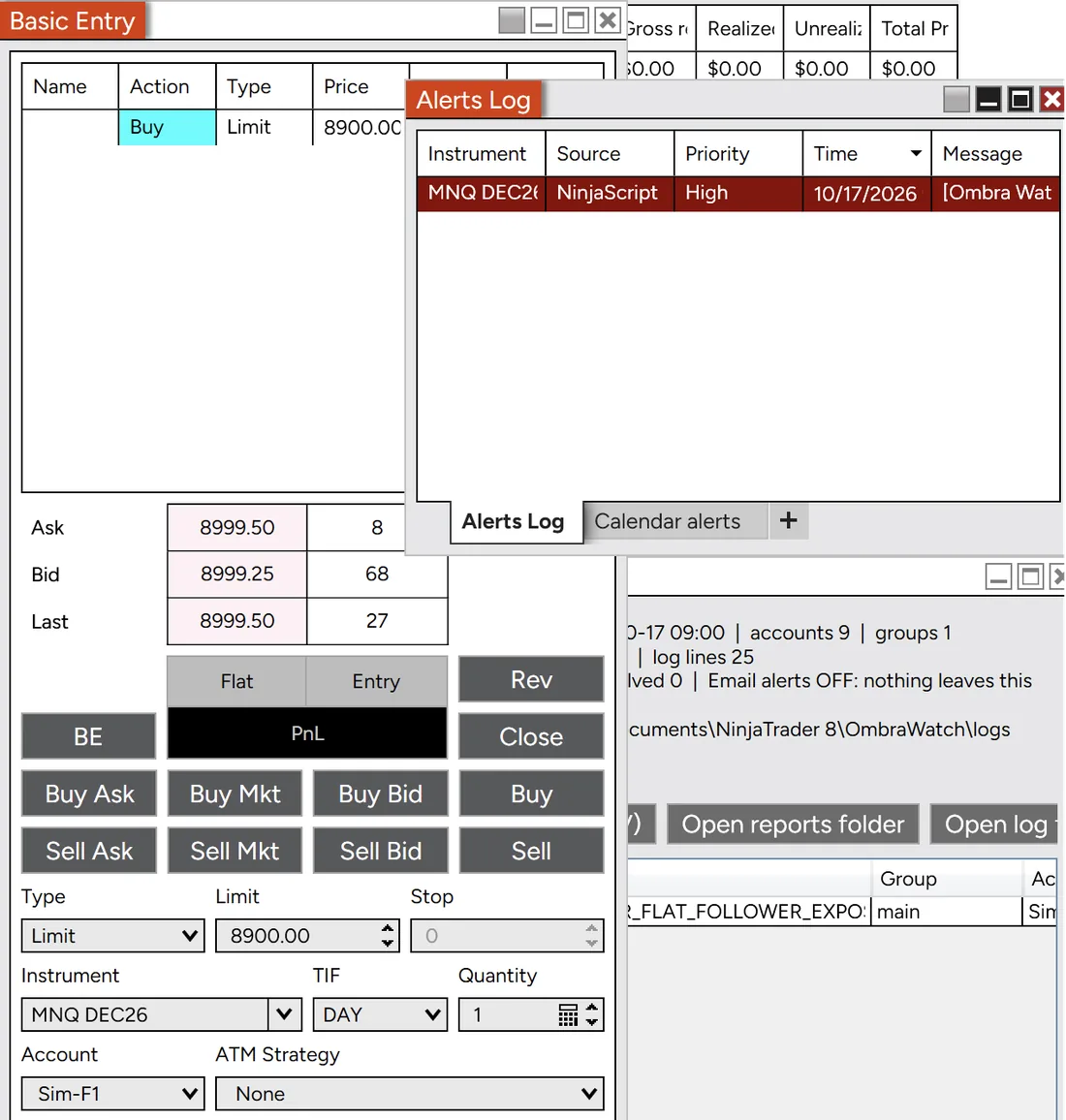
We strongly recommend this before you rely on it. Set up a group of sim accounts (Sim-L leader, Sim-F1 follower) with the Simulated Data Feed connected. If the Simulated Data Feed isn’t in your Connections menu, sign in to NinjaTrader and tick Tools › Options › General › Multi-provider, then restart.
- With the leader flat, place a Buy Limit well below the market on the follower only.
- Within about 4 seconds you should hear the alert, see a red line in the Alerts Log and a row in the Watch window, and get an email.
- Cancel the order. A green “resolved” line and an all-clear email follow a few seconds later.
What the alerts mean
LEADER_FLAT_FOLLOWER_EXPOSED- The leader has nothing open, but a follower has a working entry order or a position. Act on this one first.
ORDER_NOT_ON_LEADER- A follower has more working entry orders on a side than the leader.
REVERSED_VS_LEADER- A follower’s position is the opposite way to the leader’s.
NO_PROTECTIVE_STOP- A follower holds a position with no working stop to close it.
A problem must last 3 seconds before it alarms. While it stays open, Watch reminds you every 5 minutes, not every second. It goes quiet and sends “resolved” once the problem has been gone for 3 seconds. Closing the Watch window doesn’t stop it; only closing NinjaTrader does.
Good to know
- Watch only sees accounts connected in this NinjaTrader. If you run several installs, each needs its own copy (and its own subscription).
- It writes a log in
OmbraWatch\logs. It never contains prices. Export report makes an HTML and CSV summary you can keep. - To turn email off, untick Email alerts in the Email tab and press Save. Then nothing leaves your PC at all.
- Mute for 10 minutes (Alerts tab) silences sounds, pop-ups and emails while you sort something out. Anything still open is alerted once when the mute ends.
- New in v0.3: trailing drawdown alert (off by default). It alerts you on screen as an account gets close to an intraday trailing floor worked out from its peak equity. It is never emailed. To switch it on, open
settings.txtin the OmbraWatch folder with Notepad, settrailingDdEnabled = true, yourtrailingDdMaxLoss, warning distances such astrailingDdWarnAt = 1000, 500, 250and optionallytrailingDdAccounts, then restart NinjaTrader. Check the figures against your firm’s own rules: Watch only alerts you, you act.
Getting help
Email craig@ombratrading.com with a screenshot of the Ombra Watch window. The status lines at the top usually show what’s wrong. For example, HTTP 401 means the install code wasn’t recognised.